
How to Manage Content In Bulk
Last updated March 3, 2023
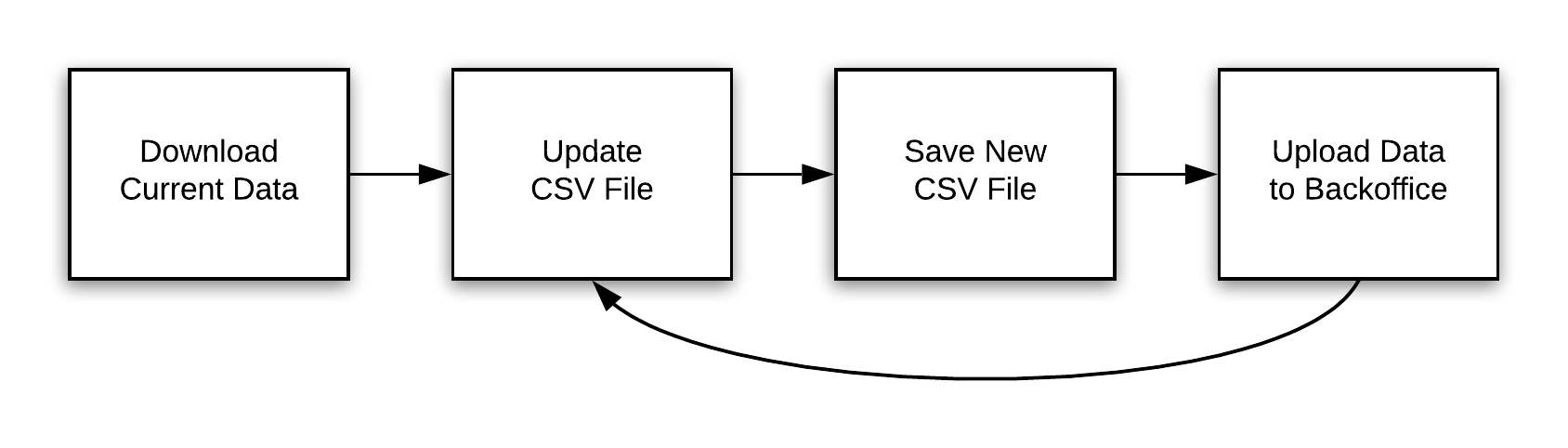
Managing content in bulk offers several benefits, including increased efficiency and time savings, and the ability to make updates and changes to multiple items simultaneously.
- You should always begin by downloading the current data for your content type. If you’re just starting out, you’ll get an empty file with all of the appropriate columns. And if there is already content, starting with a current base file is the best way to ensure that you don’t accidentally overwrite anyone else’s changes.
- CSV files are plain text, and there any many tools available for your platform to edit them, from text editors to spreadsheets. The most ubiquitous choice, Microsoft Excel, has some quirks in its handling of CSV data. If you are using Excel (or Apple’s Numbers, or a similar spreadsheet application) to edit the files, please be sure to use the download links labeled for Excel. If you are a Mac user, please do not use Excel 2011, as it does not correctly handle these documents; please use Numbers instead.
- Likewise, when saving your changes from a spreadsheet application, please be sure to explicitly export the data to CSV UTF-8, rather than just using the save command. It is especially important to ensure that you save in CSV UTF-8 (Comma delimited) format if your data contains letters, symbols, or diacritical marks outside of standard American English (like ®, ™, phở, résumé, or ragnarök).
- In Excel, press the Office menu, choose Save As. In the dialog, choose “CSV UTF-8” as the format.
- In Numbers, use File > Export To > CSV…. Be sure to expand the Advanced Options, and choose “Unicode (UTF-8)” as the text encoding.
- While most of the columns in the files should be familiar to you from editing items using the backoffice forms, there are a few columns that deserve special mention. If you’re loading initial data into a brand new event, chances
are that you can ignore them entirely.
- ID: Whenever an item is created in Engagefully, it’s assigned a unique ID number automatically. The value in this column is how the system determines whether you’re creating a new record, or updating an existing one.
- External Key and Timestamp: These columns are included to support importing data into Engagefully from some other system, usually from a database export. We have much more information about them available here.
- Version: Every item in Engagefully has a version number, and it changes every time the item does. We include the version numbers in the data files to help prevent two users from editing the same item at the same time. You should not edit this value yourself.
A Few Words About Formatting
Most of the information loaded into Engagefully is text: things like names, meeting locations, job titles, and so on. A few of the elements have more specific requirements in terms of how they need to be formatted for the import process to recognize them properly.
- Dates: The upload process allows most standard American formats for the start and end of sessions, but they must include both the date and the time. The values will be assumed to be in the event’s local time zone.
- Internally, Engagefully stores all of these values in UTC (Coordinated Universal Time), and that’s what you’ll see when you download the data. Don’t be surprised when the value is a little different from what you typed in! The values will be formatted like this: 2021-11-18T23:10:00Z. That’s Thursday, November 18th at 23:10 (11:10pm) UTC, which is 6:10pm in the Eastern time zone of the US (UTC-5). Also, note that this does not take into account Daylight Savings Time, which has different start/end dates in the US and Europe, for instance. Please be careful of the difference when editing existing session data!
- URLs: Web addresses, like a company’s web site, or the address of a resource file, must always be absolute URLs, beginning with http:// or https://.
- Descriptions: the descriptive content for an item may be plain text, or they may contain some limited HTML markup.
Troubleshooting
In rare cases, we have observed issues with uploading .csv files. If all other items above are correct, we recommend trying a different web browser. Example: If you are using Chrome as your browser, trying using FireFox, Edge, or Safari to see if this resolves the issue.
For any questions, or if you are experiencing issues, please reach out to our Product Specialists for assistance at support@rdmobile.com.
RD Mobile FAQ
Got a quick question? Check out RD Mobile's FAQ page for a quick answer. A collection of our most common client questions all in one place!
- Can I Copy and Paste an Event?
- What images can I upload to brand my app?
- How can I make changes to my app store listing?
- How often can I update event content in the apps?
- Registrant Profile vs. Participant Profile
- Do unpublished events automatically reflect changes I’ve made to event content?
- Are there differences in how Engagefully looks or behaves across different devices?
- How soon will attendees see the updated content on their devices?
- Can attendees export their sessions to their device calendar?
- Will Engagefully EVENTS work when the attendee doesn’t have Internet connectivity?
- Is it possible for attendees to manually fetch the most recent content?
- Does RD Mobile have surveys and polls?
- How will the custom values appear in the app?
- Where will ads show up?
- What is the difference between the Attendee Roster and Attendee Social Profiles?
- What is RSS?
- How do I remove flagged posts, photos, and comments from the app?
- What is the Personalized Dashboard?
- What different content can display in the Dashboard?
Get Started With Conversations
RD Mobile's Conversations provides a space for members, event participants, committees, and groups to connect and engage. Conversations is available as an add-on to RD Mobile’s Engagefully platforms.
About RD Products
RD Mobile’s industry-leading Engagefully & Engagefully EVENTS apps & platforms power year-round member engagement as well as in-person, hybrid/blended & virtual events - on both mobile & desktop devices.
Get Started With Year-Round Content
Ready to set up your year-round content on the Engagefully platform? Follow these steps to kickstart your engagement.
On-Site Tools & Support
This is a collection of tools, tips and best practices to support your participants leading up to and during your event.
Publish & Promote Your Event
Your event is ready to go, now it's time start engaging participants.
- How to Publish Your Event
- Invitation Email
- Follow-Up Emails
- Email Templates
- App Marketing Resource - How-To Guides
- Increasing App Downloads & Engagement - Marketing Campaign
- App Marketing Resource - Digital Business Card Exchange Promo Image
- App Marketing Resource - Website Samples
- App Marketing Resource - Spinner Samples
Add Basic Event Content
Ready to start adding content to your new event? Learn the basics here in this step-by-step guide.
- How do I create a Notification?
- Setting Up Sessions
- Setting Up Speakers
- How to Reorder Speakers and Designate Speaker Roles
- Setting Up Exhibitors
- How do I create tags for my Event?
- How to Add Registrants
- Registrant Profile vs. Participant Profile
- How to Manage Content In Bulk
- How do I enable and manage the event Dashboard?
- Add a New Menu Item
- Add a Map
- Setting Up Ads
Advanced Event Features
Want to supercharge your event? Browse through this collection of advanced features to determine what your event needs to take it to the next level.
- Event Roles
- How to Reorder Speakers and Designate Speaker Roles
- How to Create Exhibitor Booth Staff, Moderators, and Sponsor Representatives Using Custom Content.
- How to Create Custom Content
- What are Custom Labels used for?
- Event Integrations FAQ
- Embed Sessions on Your Web Site
- Embed Speaker Details on Your Website
- Embed Exhibitor Lists on Your Web Site
- How to Add Surveys, Evaluations & Polls
- Exhibitor Management Portal
- QR Code and Virtual Session Check-In
- Digital Business Card Exchange
- Setting Up Gamification
- Arranged Appointments
- Embed YouTube Content within Sessions
- Embed Vimeo Video Content within Sessions
Create a New Event
Ready to create a new event on the Engagefully & Engagefully EVENTS (formally Eventsential) platform? This step-by-step guide will walk you through creating and configuring a new event.